
How to install an eSIM on iPhone
Install the profile only after checking device compatibility and the plan activation conditions. Keep the iPhone on Wi‑Fi and retain access to the installation details in your account.
Short answer
Open Settings → Cellular/Mobile Data → Add eSIM, scan the QR code or enter the manual details, label the line and select it for Cellular Data. Enable Data Roaming only on the travel line when the plan instructions require it.
Steps
Prepare the phone
Connect to Wi‑Fi, update iOS when appropriate, confirm that the iPhone is unlocked and keep the QR code or manual installation details accessible.
Open the eSIM menu
Go to Settings → Cellular or Mobile Data and tap Add eSIM. Labels can differ slightly with device language.
Add the profile
Choose Use QR Code and scan the code from another screen. If the QR is on the same iPhone and the system does not offer an option to read it from a photo, use the manual installation details or display it on another device.
Confirm and label the line
Wait for the profile to download, then give it a clear label such as “Travel”. Do not delete it if service does not appear immediately.
Choose your lines
Keep the primary number for calls and texts if needed, and select the travel eSIM for Cellular Data. Turn off Cellular Data Switching if you do not want the phone to fall back to primary-line data.
Activate at the right time
At the destination, turn on the line and Data Roaming only as described in the plan instructions. Allow a few minutes for network registration and verify that data is using the eSIM.
Need installation help? Ask AI.
The easiest way: install directly (no QR code)
On a supported iPhone, open My eSIMs in the app or website and use Install directly if available; the delivery email may call it Install on iPhone. Link-based installation requires iOS 17.4 or later. If it is not offered, use the QR code or manual details.
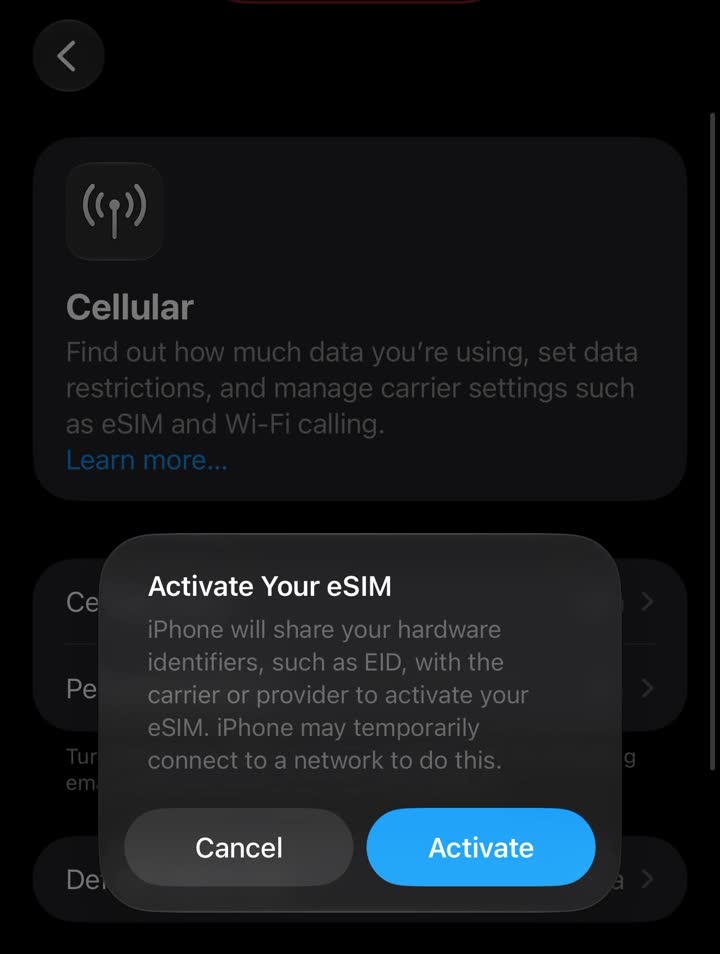
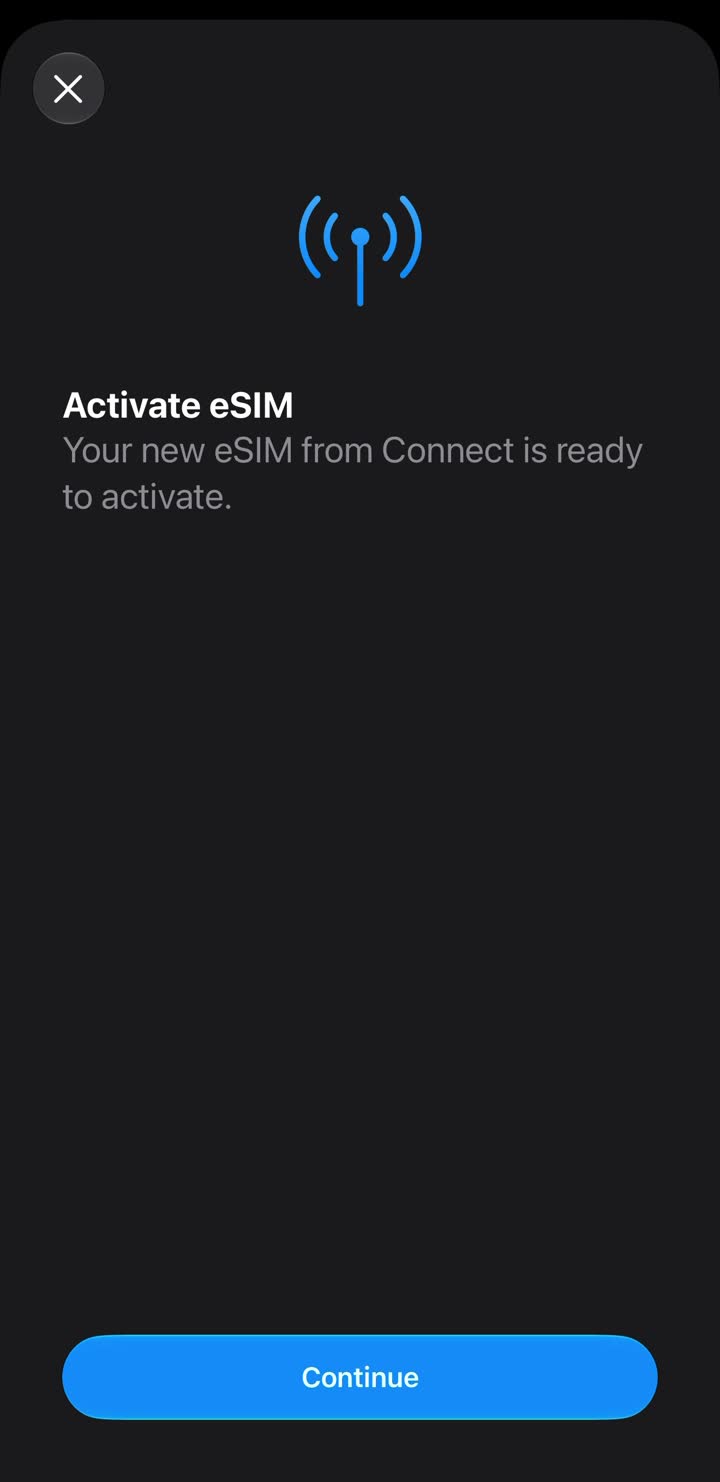
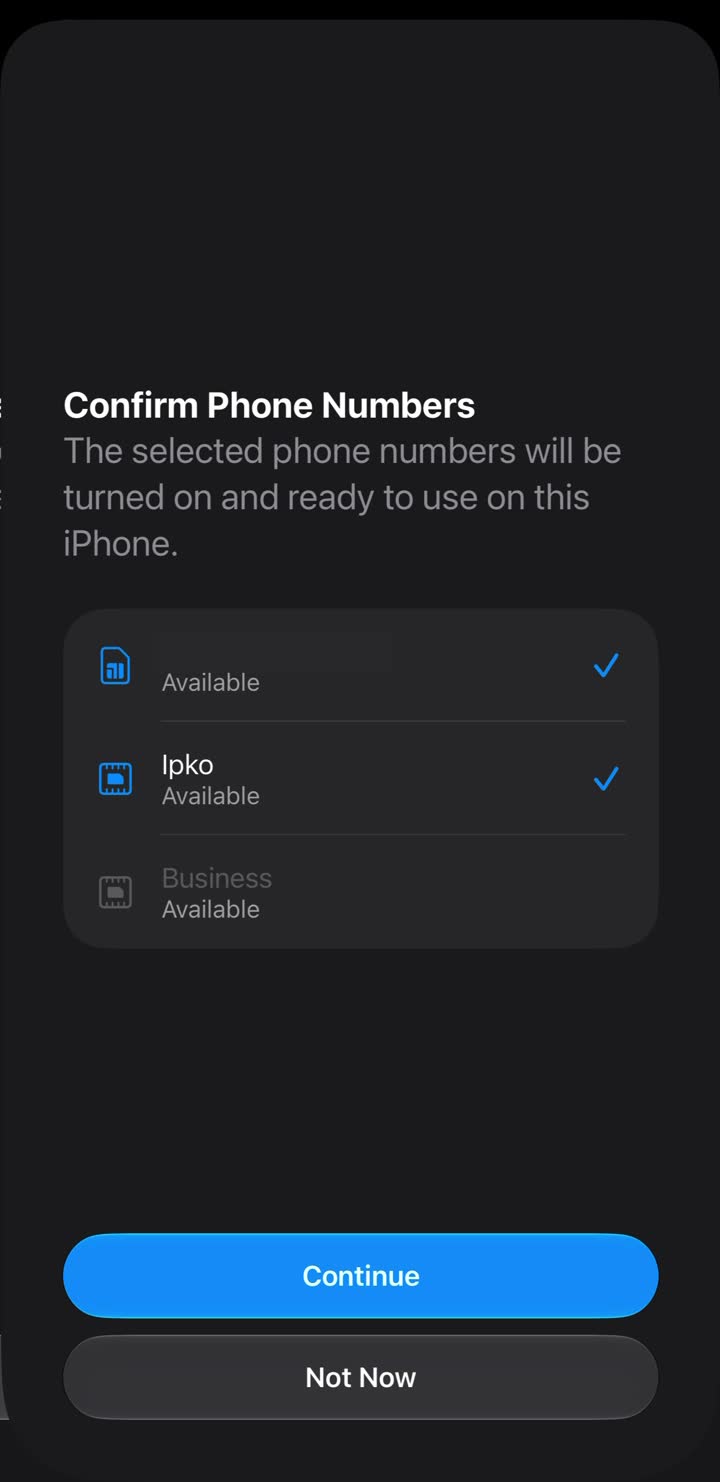
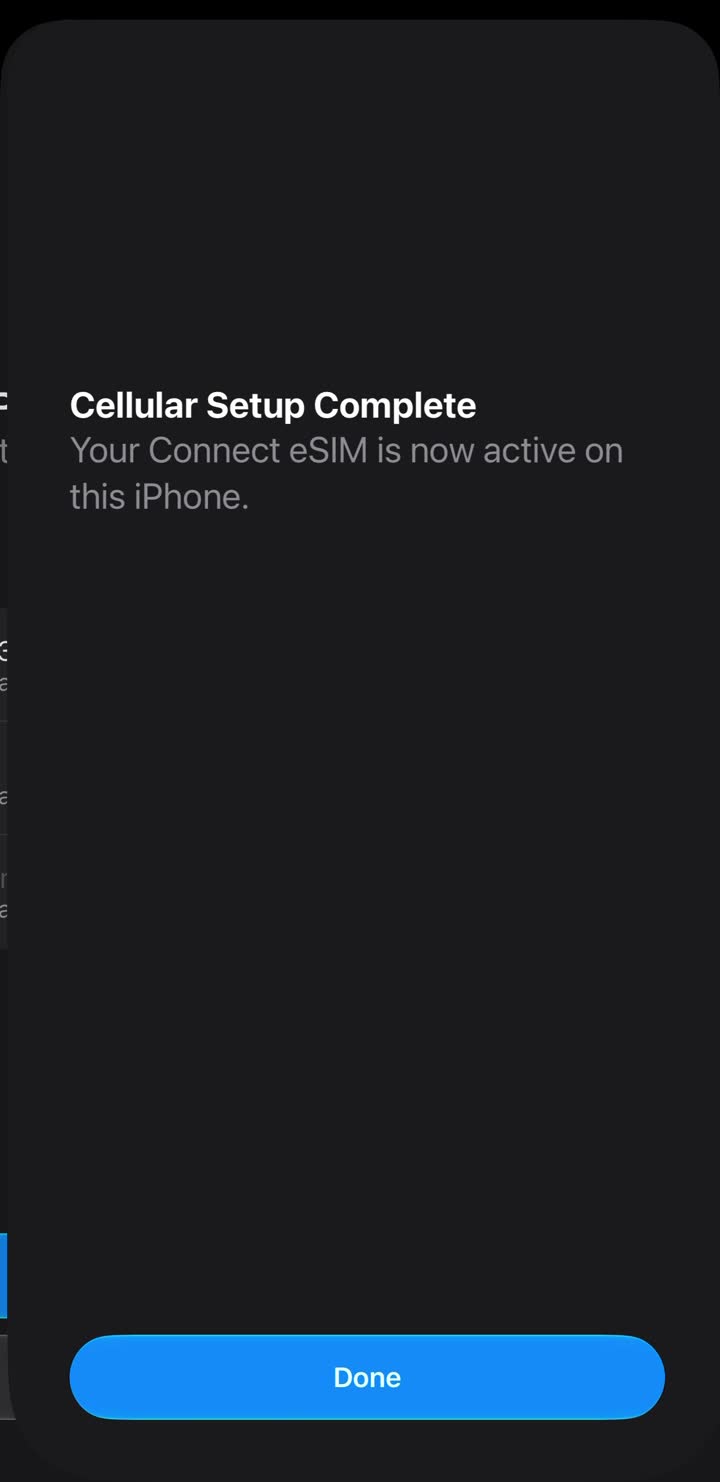
iOS shows an Activate Your eSIM sheet. Tap Activate and wait — Connecting to your carrier can take a minute or two. If the phone asks Confirm Phone Numbers, it is only confirming that your existing lines stay on; tick your usual numbers and press Continue. Finish with Done when you see Cellular Setup Complete.
With iOS 17.4 or later, you can touch and hold a supported QR code in email or your default browser and choose Add eSIM. If that option is unavailable, scan the code from another screen or use the manual details.
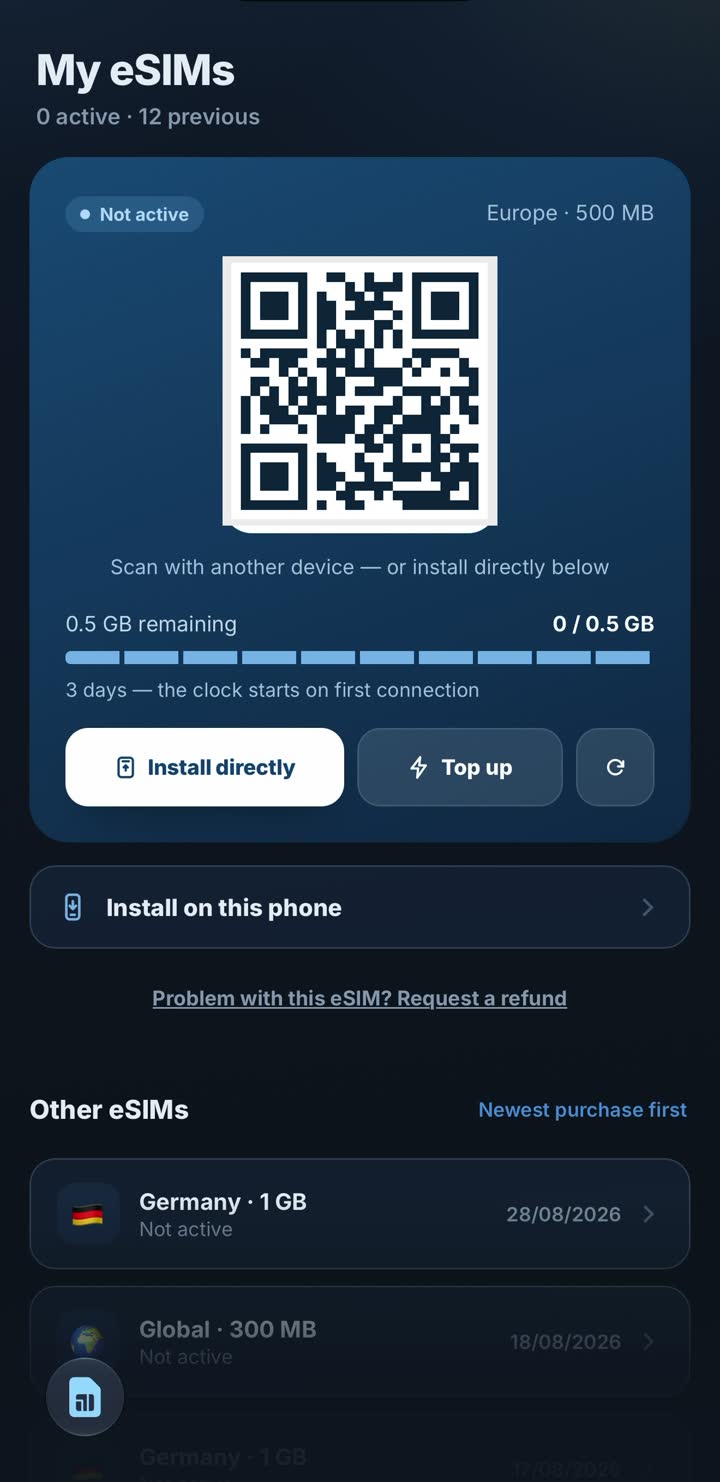
No camera or QR problems? Enter the details manually
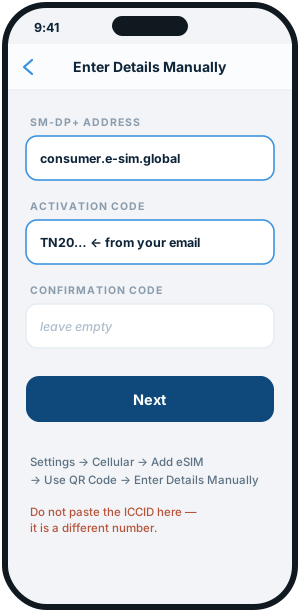
Open Settings → Cellular (or Mobile Data) → Add eSIM → Use QR Code → Enter Details Manually.
Enter the SM-DP+ Address and Activation Code from your installation details. Leave Confirmation Code empty unless your provider supplies one. Do not use the ICCID as an installation code.
Before scanning the QR code
Check whether validity starts at installation or at the first supported network connection. If it starts on installation, do not add it too early. Keep the QR code private because it is an installation credential.
A QR code can often be used only once. If installation is interrupted, do not delete and reinstall without first checking with support.
Settings that prevent unintended roaming
Set the eSIM as the Cellular Data line. Disable Data Roaming on the primary line and, when you do not need it, primary-line cellular data. You may keep it enabled for important SMS, but your primary carrier can charge for calls or texts.
Do not change your number in WhatsApp simply because you changed the data line. WhatsApp stays on the existing account unless you intentionally use Change Number.
If it does not connect after arrival
Confirm that the line is on, selected for Cellular Data and using Data Roaming as instructed. Toggle Airplane Mode briefly and restart the phone if necessary.
Enter an APN only when one is supplied in the instructions. Do not invent an APN or delete the eSIM; save the error message and ask support for help.
Apple: set up an eSIM on iPhone
Frequently asked questions
Can I scan a QR code from the same iPhone?
With iOS 17.4 or later, touch and hold the QR code in email or your default browser and look for Add eSIM. If the code or viewing method does not support this, use the manual details or another screen.
Does the eSIM need to be my default voice line?
No. For a data-only plan, select it for Cellular Data; your primary line can remain the default for your number.